
Cursor Integration
Cursor is an AI-native code editor that understands your codebase and helps you code faster through natural language. This guide shows you how to connect Cursor to LLMCloud.
Prerequisites
Section titled “Prerequisites”- Cursor installed (Download here)
- LLMCloud API key (Get one here)
Configuration
Section titled “Configuration”- Open Cursor and go to Settings (Cmd/Ctrl + ,)
- Navigate to Cursor Settings > Models
- Scroll to OpenAI API Key and configure:
| Setting | Value |
|---|---|
| Override OpenAI Base URL | ✓ Enabled |
| Base URL | https://llmcloud.studio/v1 |
| API Key | Your LLMCloud API key |
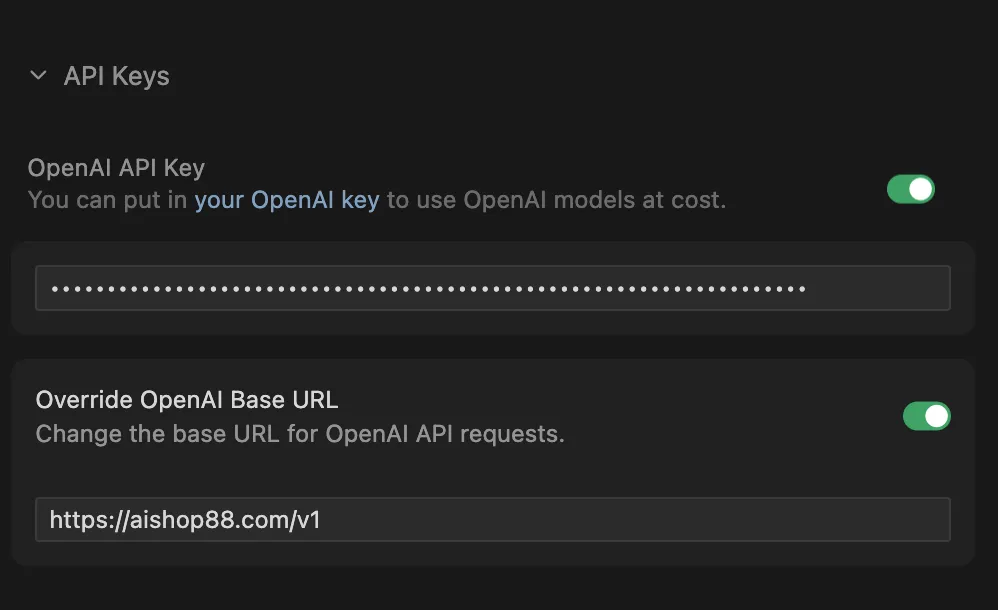
- In Model Names, click View All Models > Add Custom Model
- Enter the model ID (e.g.,
anthropic/claude-sonnet-4.5) - Click Add

Available Models
Section titled “Available Models”| Model | Model ID |
|---|---|
| Claude Opus 4.6 | anthropic/claude-opus-4.6 |
| Claude Opus 4.5 Thinking | anthropic/claude-opus-4.5-thinking |
| Claude Sonnet 4.6 | anthropic/claude-sonnet-4.6 |
| Claude Sonnet 4.5 | anthropic/claude-sonnet-4.5 |
| Claude Sonnet 4.5 Thinking | anthropic/claude-sonnet-4.5-thinking |
| Claude Haiku 4.5 | anthropic/claude-haiku-4.5 |
| Gemini 3 Flash Preview | google/gemini-3-flash-preview |
| Gemini 3 Pro Preview | google/gemini-3-pro-preview |
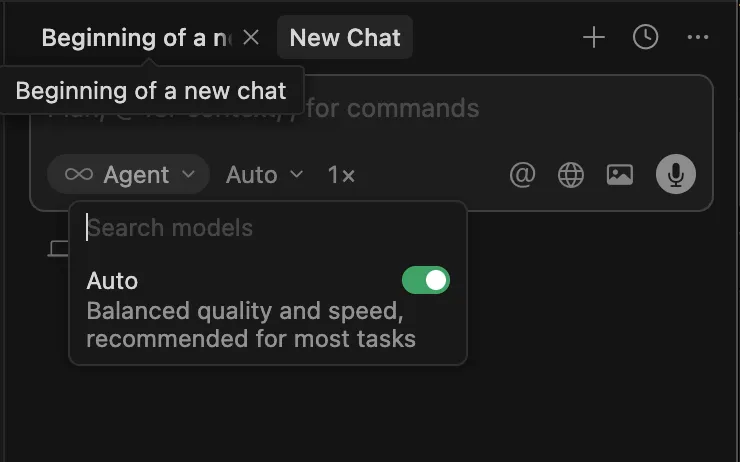
- Disable Auto mode in Model Names
- Select your added LLMCloud model
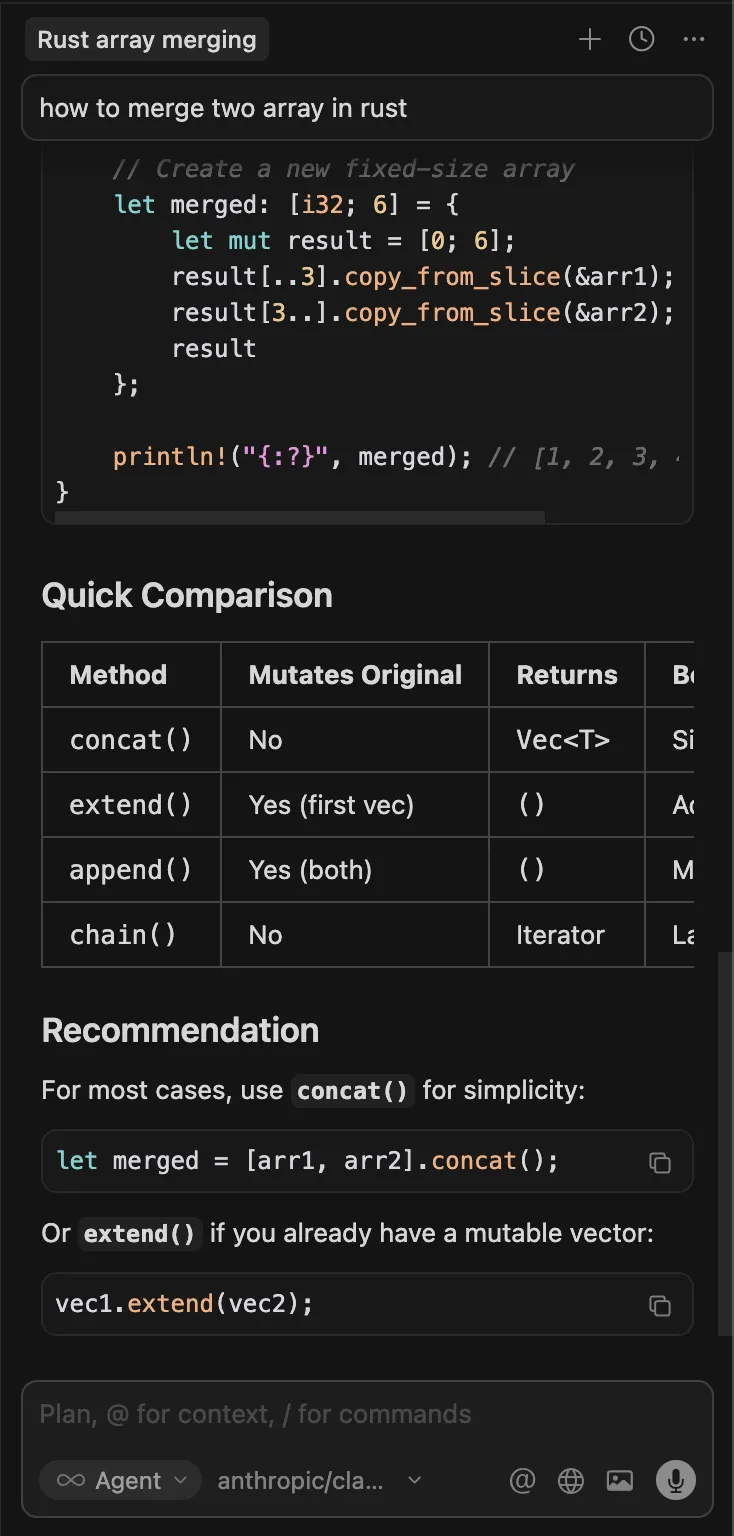
- Start coding with AI assistance
Troubleshooting
Section titled “Troubleshooting”Invalid API Key
Section titled “Invalid API Key”Problem: “API Key invalid or unauthorized” error
Solutions:
- Verify your API key is correct
- Check your account has sufficient balance at LLMCloud Dashboard
Connection Failed
Section titled “Connection Failed”Problem: Unable to connect to API
Solutions:
- Confirm Base URL is exactly
https://llmcloud.studio/v1 - Check your internet connection
- Test with curl:
Terminal window curl https://llmcloud.studio/v1/models \-H "Authorization: Bearer YOUR_API_KEY"
Model Not Found
Section titled “Model Not Found”Problem: “Model not found” or “Invalid model” error
Solutions:
- Use the exact model ID format (e.g.,
anthropic/claude-sonnet-4.5) - Verify the model is available in your subscription
Support
Section titled “Support”- Official Website: https://llmcloud.studio
- API Documentation: https://docs.llmcloud.studio
- Cursor Documentation: https://cursor.com/docs